Adding subtitles to your video makes it easier to reach broader viewers who may speak a different language or have hearing loss. Besides, videos with subtitles can also boost viewers’ engagement, esp. at our time when growing videos are consumed with the sound off during commute.
Yet, adding subtitles to a video can be a time-consuming and mundane process in video editing. So, in this tutorial, we will walk you through the 4 easiest ways to add subtitles to a video online. Without further ado, let’s get started now!

Here’s What You Will Learn:
How to Add Subtitles to a Short Video Online
If you are a content creator who often needs to add subtitles to a short video like a promo video, movie intro, and trailer, YouTube Shorts, Instagram Reels, or TikTok video, then a one-stop solution you can use to add subtitles to a video with styles is FlexClip online video maker.
Easily add subtitles to a video by FlexClip online.

With FlexClip, you can easily upload your clips from your PC, phone, or your social media to its in-browser video editor and select from the extensive eye-catching text and subtitles styles for your videos on the intuitive and magnetic timeline.
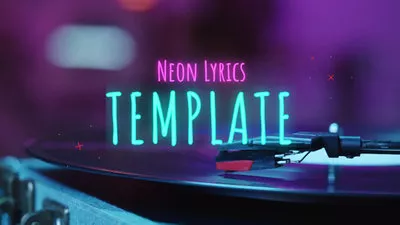
In addition, you can use designer-made and fully-customizable lyric video templates, movie trailers templates, typography videos, etc., and drag and drop to customize creative subtitles for your video projects, with no experience needed.



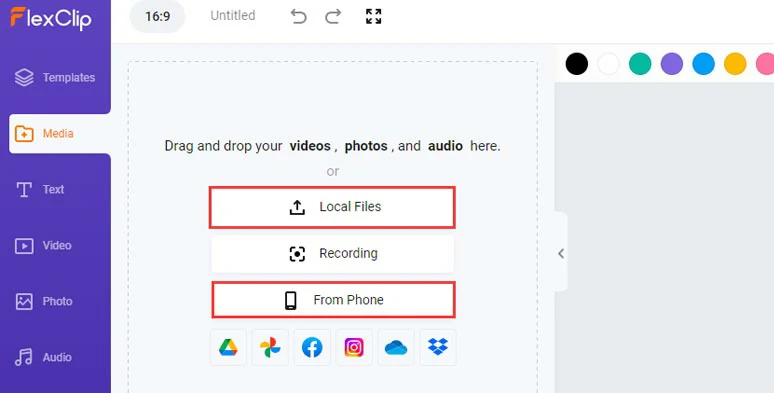
Upload your video assets to FlexClip.
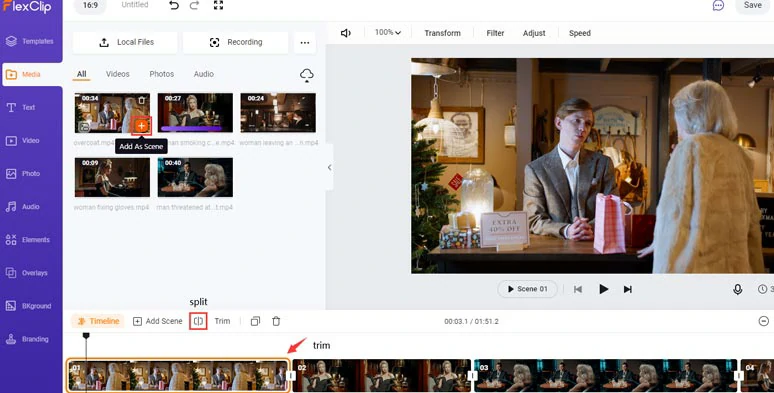
Add clips to the timeline and trim or split clips.
Click the Text tab > select a title > customize the text, text fonts, styles, opacity, size, and colors of subtitles and their background. If you scroll down, you can find many useful text animations like lower thirds, wedding titles, birthday titles, Christmas titles, news tickers, etc.
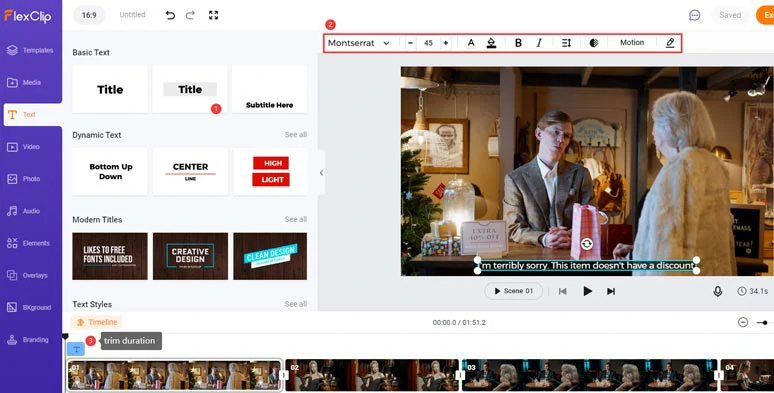
Add subtitles to the video and customize its styles, fonts, colors, etc.
If you are adding subtitles to a movie trailer or promo intro, you can hit the Motion tool and animate the subtitle with the cinematic typewriter effect, glossy blur, glitter, stomp, etc. You may drag the subtitle to wherever you want and easily trim it on the intuitive timeline.
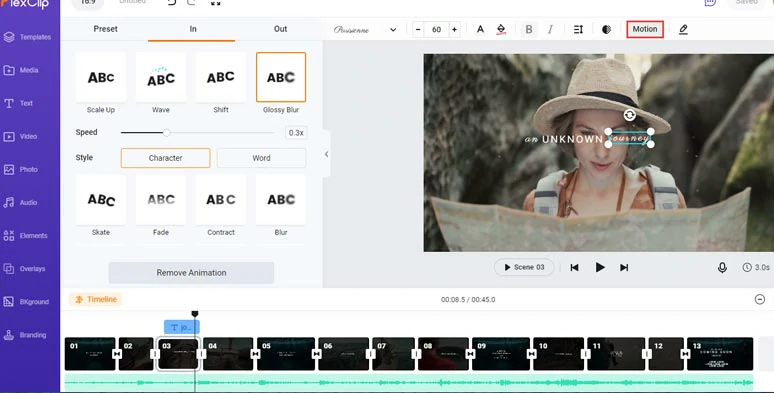
Animate subtitles with cinematic text animation effects.
Done with the editing. You can download the video to your local computer or directly share it to your YouTube channel, Google Drive, or Dropbox; a clickable link and an embed code are also available for repurposing.
How to Add Subtitles to a Long Video Automatically
If you are about to add subtitles to a long video interview, public speech, or a movie, manually adding subtitles to a video would be far time-consuming. A great solution is to use AI to automatically add subtitles to your video and then correct the inaccurate words. To that end, Kapwing's auto subtitle generator works like magic.
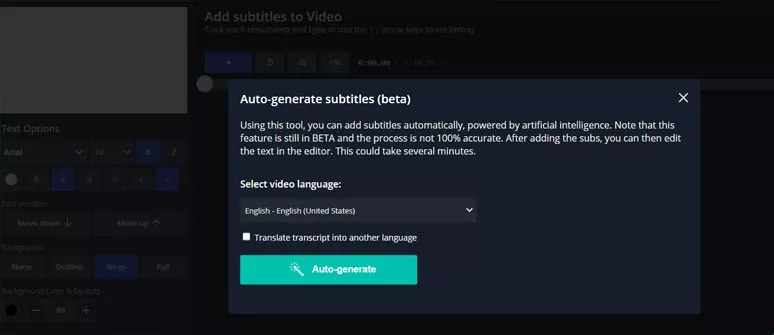
Add subtitles by Kapwing’s auto subtitles generator
Interestingly, not only can you directly upload your clips from the local computer, but also paste a URL to add subtitles to an online video like your YouTube video.
Then Kapwing will use AI to automatically process the video and generate subtitles for different time slots.
Since auto-generated subtitles can't be 100% accurate when it comes to slang, accents or names, etc. So, you need to playback the video from beginning to the end and correct the wrong subtitles manually.
You can directly download the video with subtitles in MP4 format locally. However, if your video is more than 7 mins, you need to upgrade to Kapwing Pro subscription for the free download.
How to Add Subtitles to an Uploaded YouTube Video
Apart from online video editors like FlexClip or Kapwing, if your videos have already been published to YouTube, you can use YouTube Studio to directly add subtitles to online YouTube videos, which is completely free.
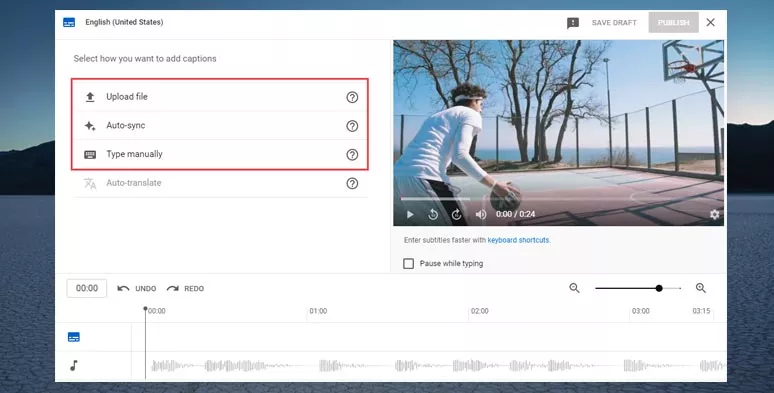
Use YouTube Studio to add subtitles to an online YouTube video
How to Add Subtitles to a Video from the Help of Professionals
If you are desperate to meet the deadline while preferring high accuracy for adding subtitles or captions to your videos, then asking professionals to manually add subtitles may also be a feasible solution.
In this case, an affordable subtitle service is using Rev's speech-to-text service. So, you can get professionals to add subtitles, including foreign subtitles to your video around 24 hours after you submit your order, with 99% accuracy. Also read, how to transcribe video to text.
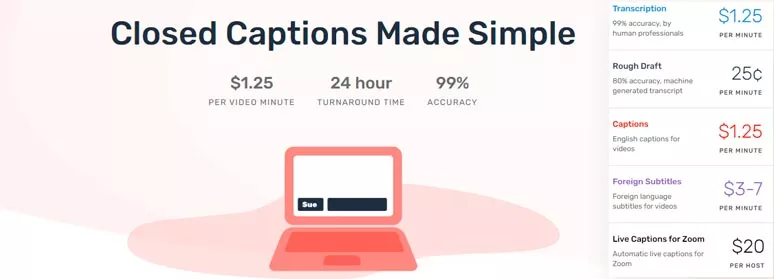
Use Rev’s human service to add subtitles or captions to your videos
After your caption/subtitle file is complete, you will receive an email confirmation and Rev will attempt to upload the SRT. file directly to your online video. Or you may log into your Rev's account and down the SRT file yourself.
Final Thoughts
| Add Subtitles | Cost | Interface | |
|---|---|---|---|
| FlexClip | Manual; tons of text animations with styles; for short videos | Free & watermark-free | Timeline |
| Kapwing | Manual; auto-generate, support multiple languages; for long videos | Free, limited to less than 7 mins for free users | Timeline |
| YouTube Studio | Manual; upload SRT file; prepare full transcripts for auto-sync | Fee & watermark-free | Timeline, subtitle box |
| Rev Human Service | Help you add subtitles to videos manually or prepare a SRT file | $1.25/min; 24 hrs turnaround; 99% accuracy | No subtitle editor |
To sum up, there are different pros and cons for these 4 options to add subtitles to a video. If you have short clips and need a variety of subtitles and text animations, FlexClip is a perfect choice. If your videos are long and you are pressed for time to add subtitles one after another, then Kapwing's auto-subtitle generator and Rev's affordable human service could also be a great alternative. Hopefully, you will find our post helpful and don't forget to share it with your friends on Facebook or Twitter.




FlexClip AI Video Maker
Reach professional-quality videos faster with easy editing tools, templates, and smart AI.
Start Now for Free
Hot & Trending
-
Best Ways to Find Music in YouTube Videos
-
Instagram Story Video Quality Bad After Upload? Fix It!
-
How to Repost Video on TikTok & How to Remove TikTok Repost
-
Improve Video Quality Online: 3 AI Video Quality Enhancers You Can't Miss
-

4K Convert to HD 1080p without Watermark: Best 4k Video Converters
-
Best 8 Free Video Editors - No Download Required
-
Top 13 Birthday Video Makers with Music and Effects Free
-
How to Search Filters on TikTok & Use a Filter You See - TikTok Filter Guide